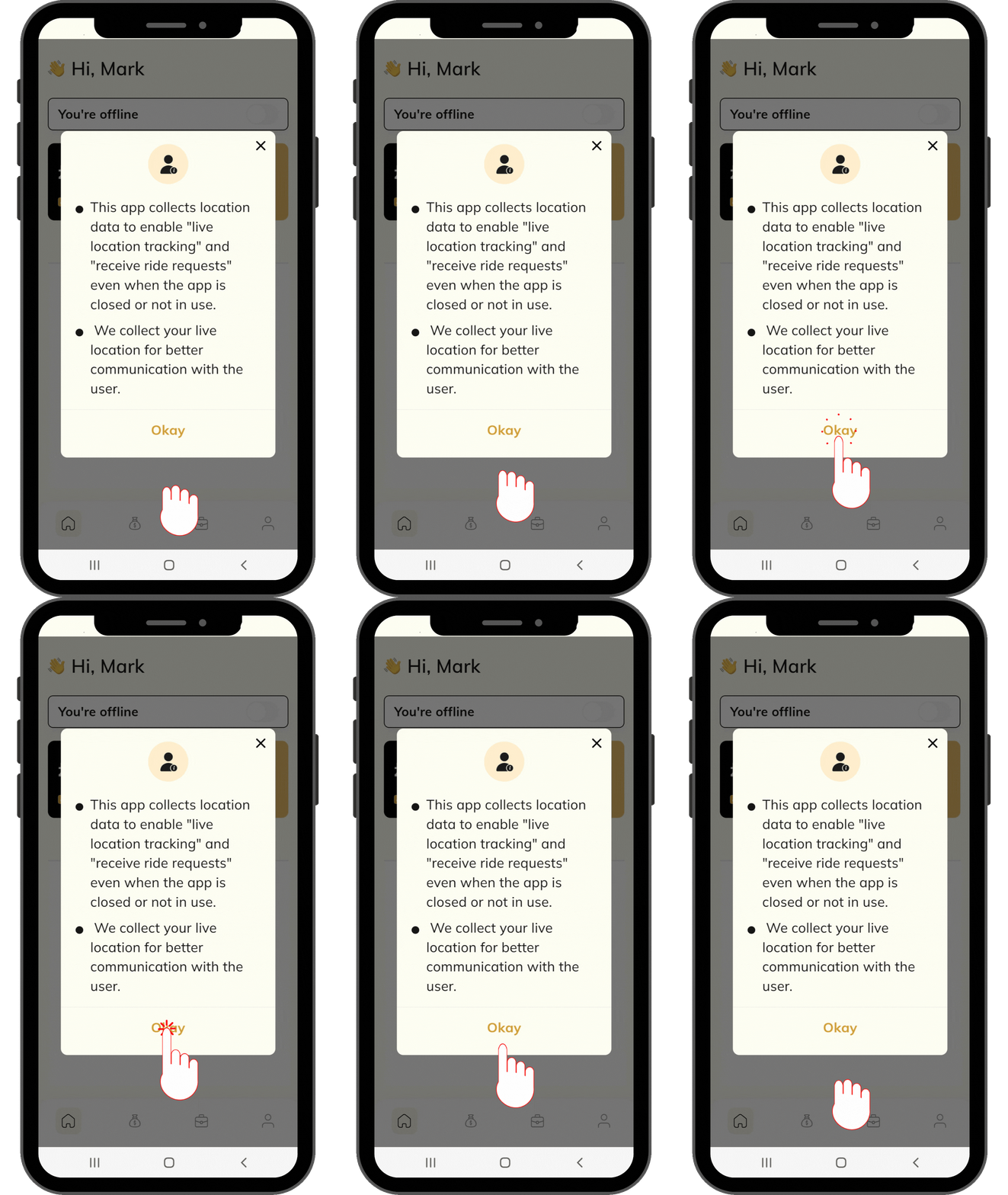
¶ Step 1 - Enable Your Location
Open Settings on your device and ensure that Location Services are turned ON. This is required for accurate service matching and real-time request delivery.
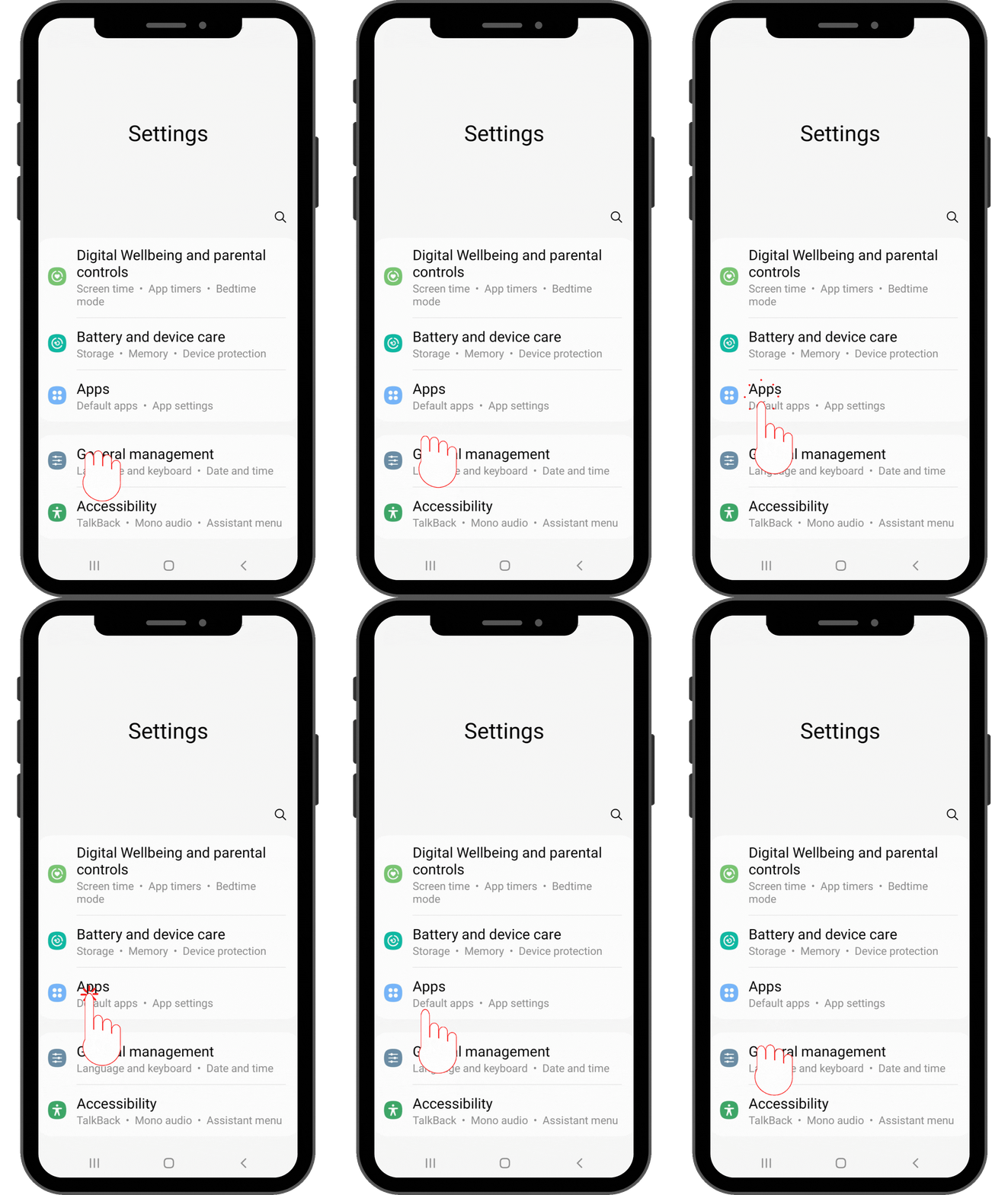
¶ Step 2 - Access Application Settings
Open Settings on your Android device and navigate to Apps (or Apps & Notifications, depending on your device). From the list of installed applications, select the NEXT2ME Team app to proceed.
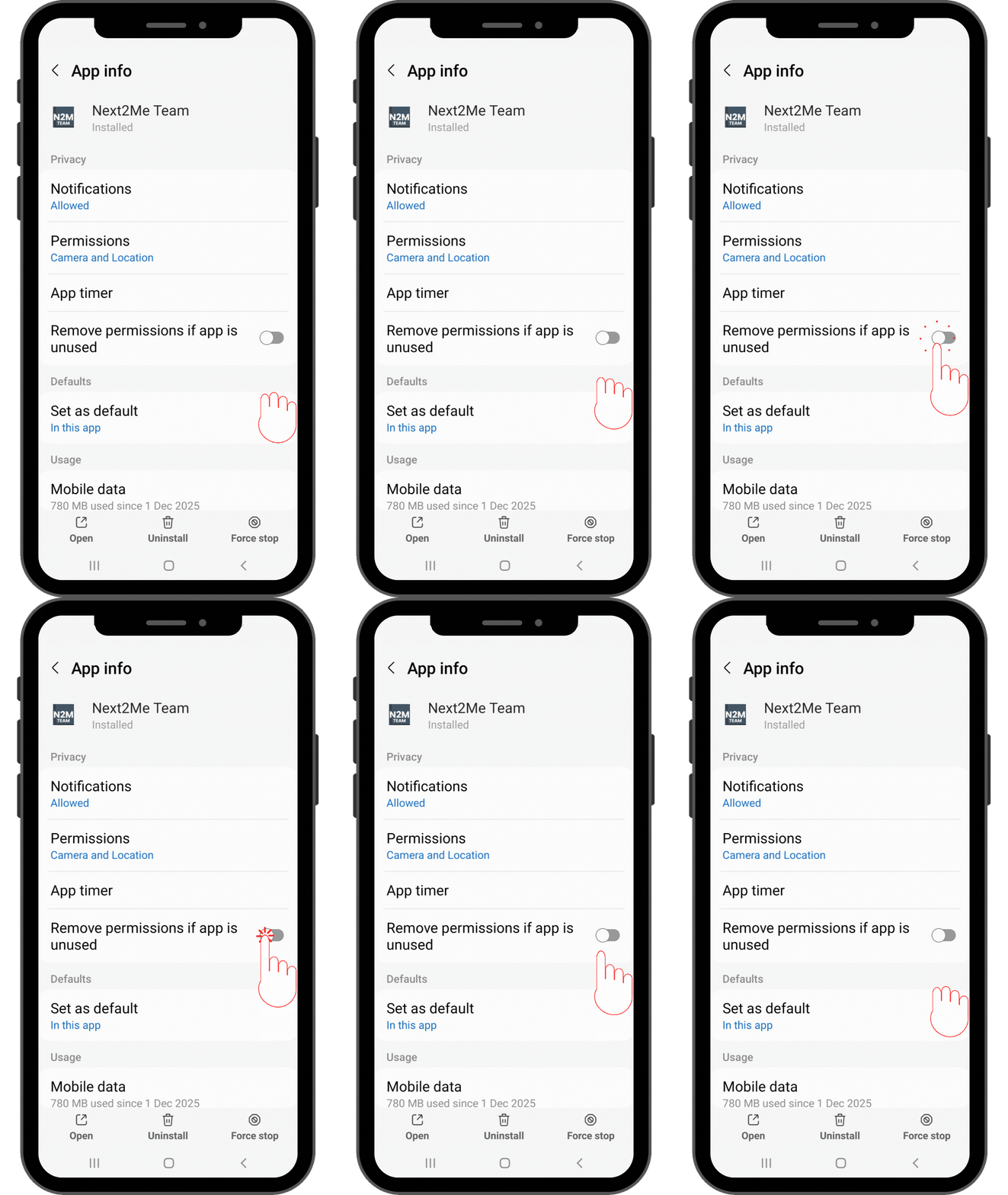
¶ Step 3 - Disable “Remove Permissions if App Is Unused”
Turn Remove permissions if app is unused OFF to prevent Android from automatically revoking permissions when the app is inactive.
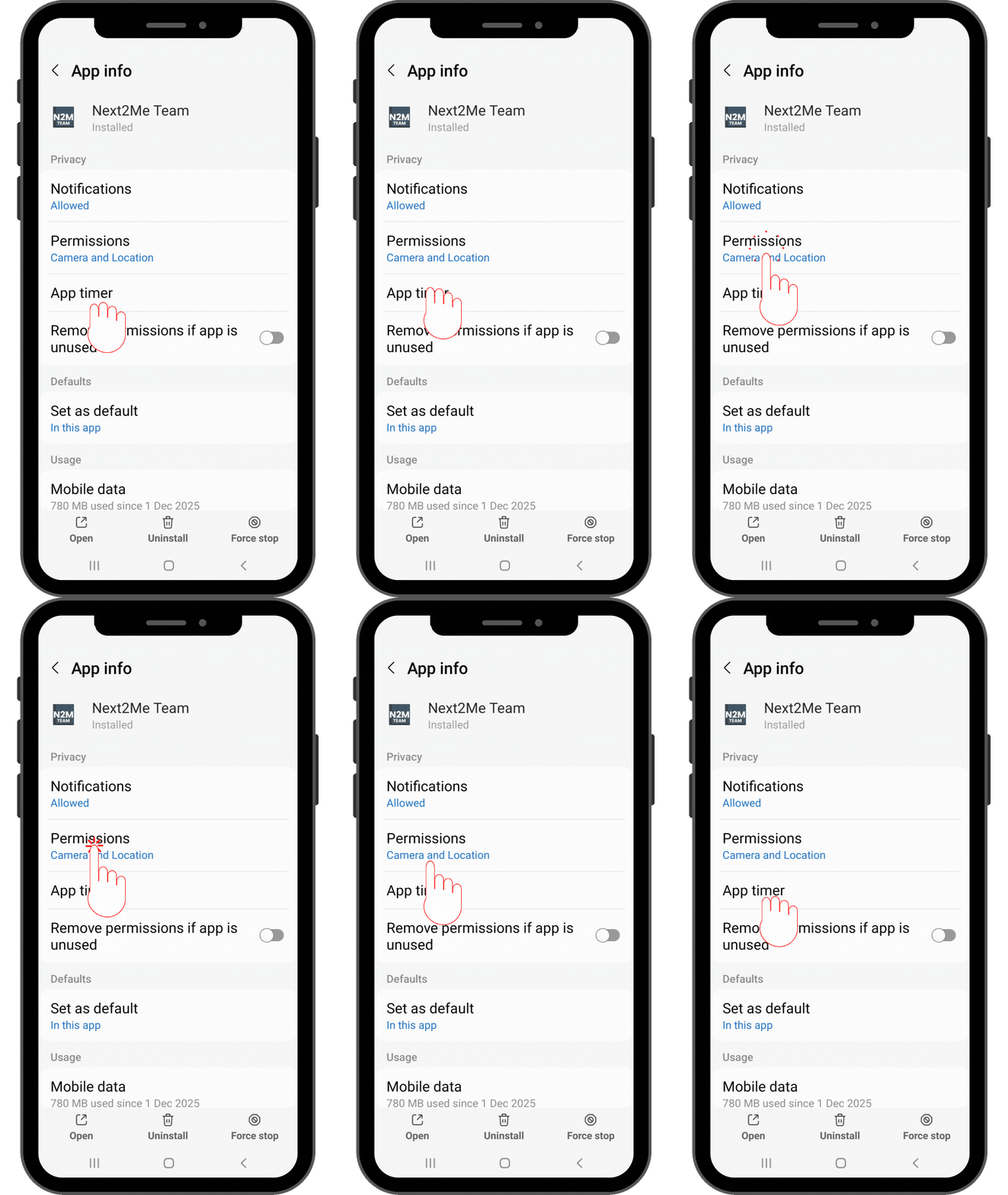
¶ Step 4 - Open App Permissions
Select Permissions to manage the access rights required for proper app functionality.
¶ Step 5 - Select Location
Tap Location to configure how the app accesses your device’s location data.
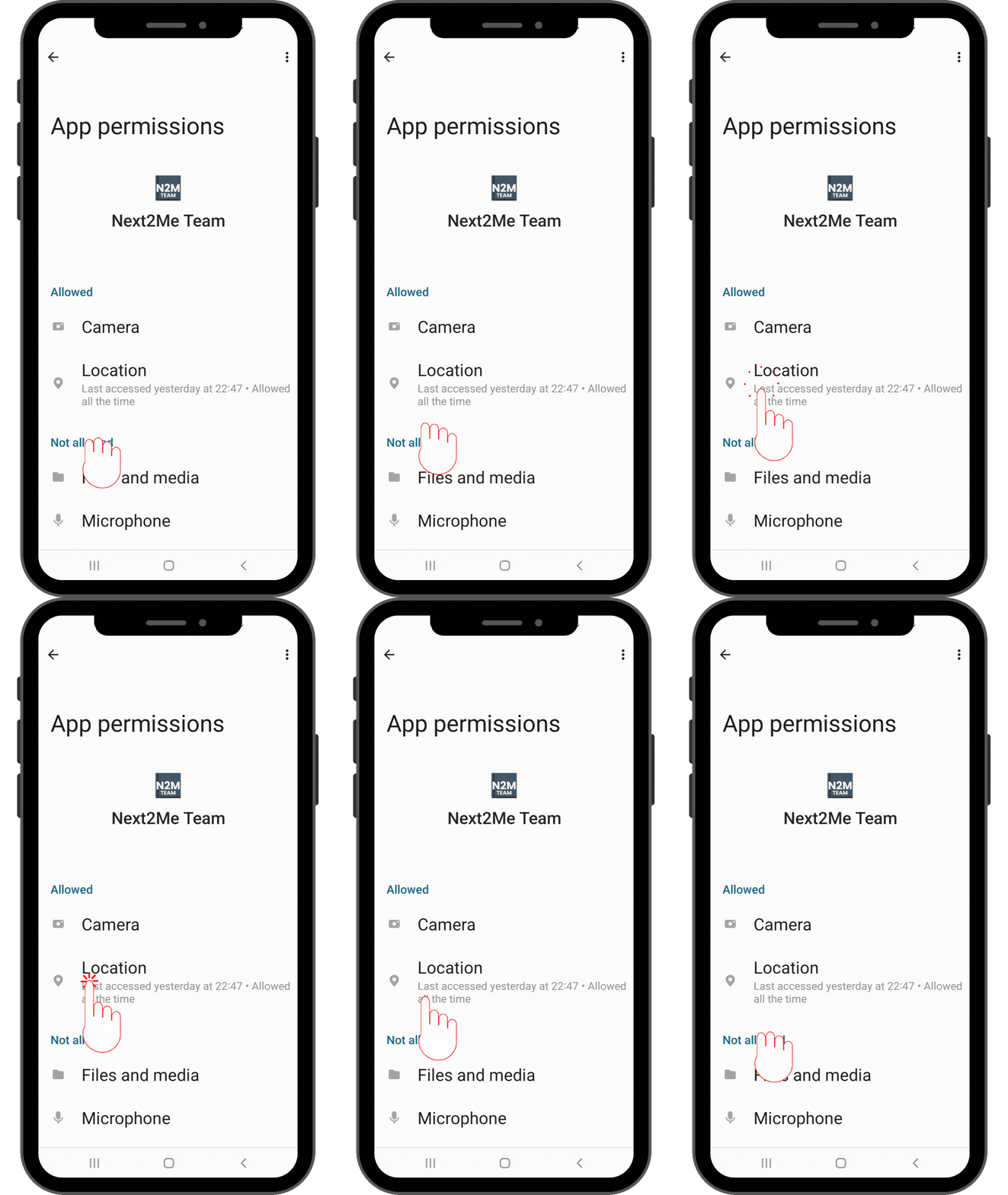
¶ Step 6 - Allow Location Access at All Times
To ensure uninterrupted service matching and real-time request delivery, service providers must select “Allow all the time” for location access. Continuous location access is required to match you with nearby customers and deliver service requests, even when the app is running in the background.
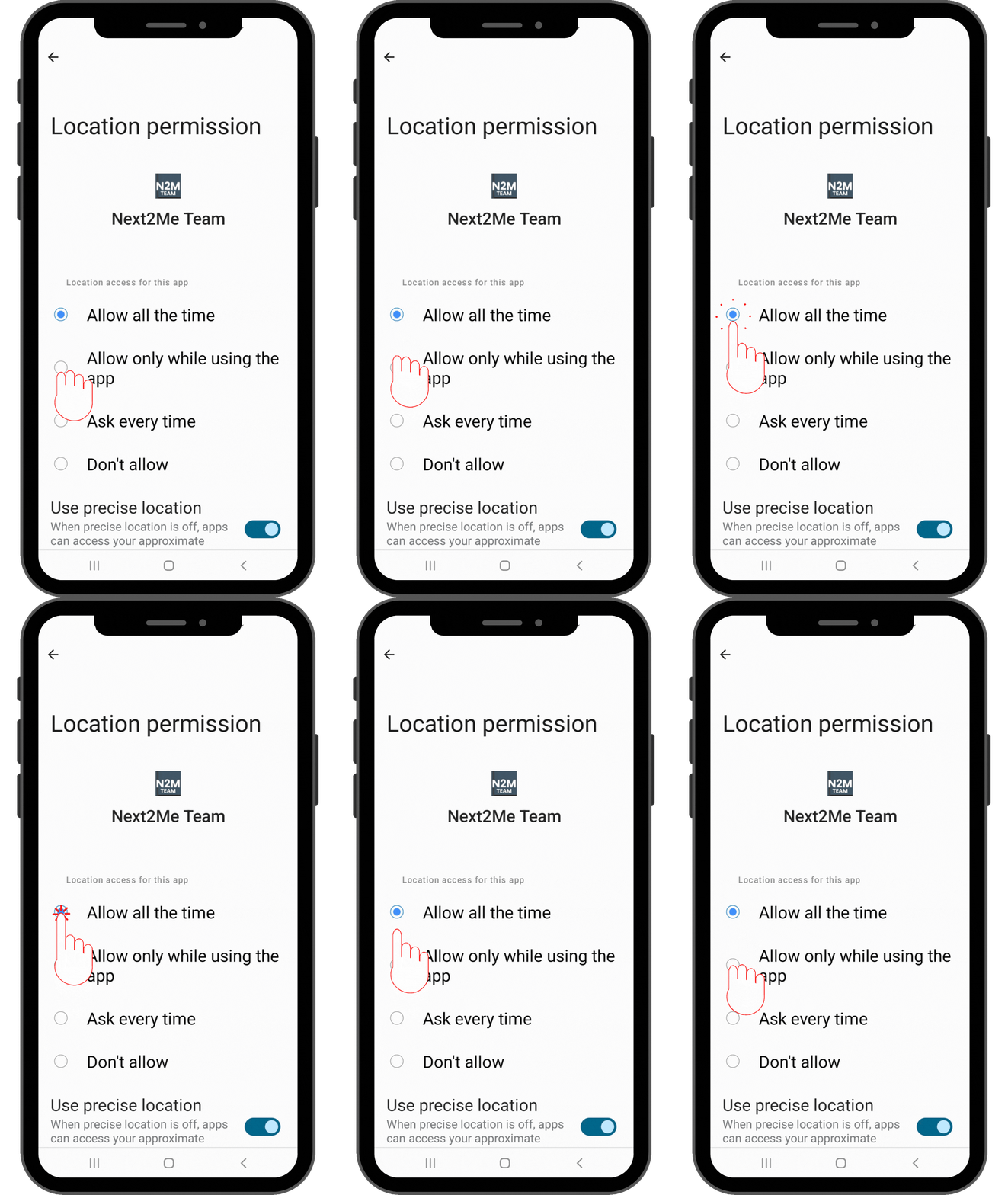
NEXT2ME processes location data solely for service matching, request allocation, and operational security, in accordance with our Privacy Policy.
We are registered with the UK Information Commissioner’s Office (ICO) and comply with applicable data protection legislation.
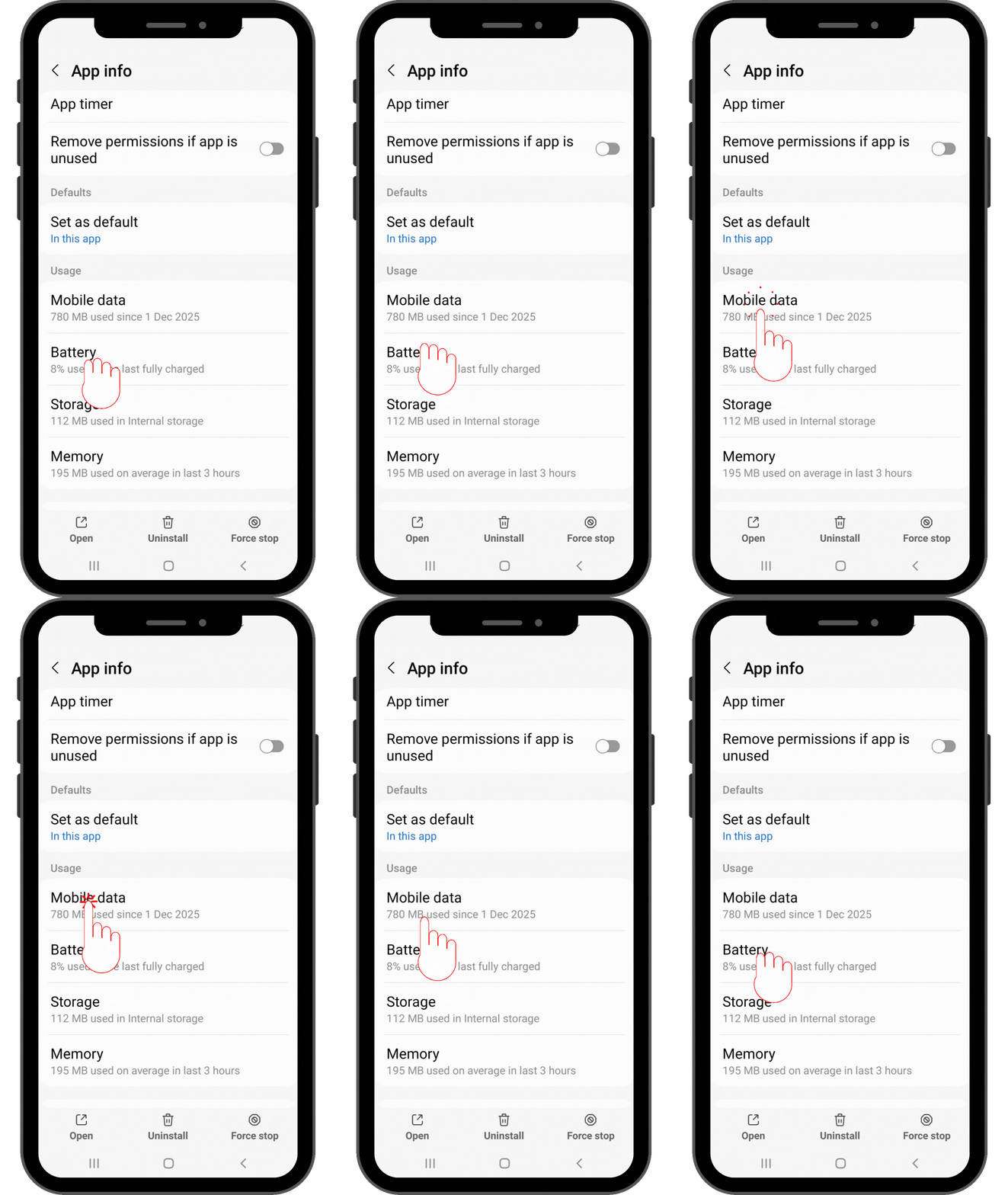
¶ Step 7 - Open Mobile Data Settings
Open Mobile Data & Wi-Fi (or Mobile Data, depending on your device) to manage the app’s data usage settings
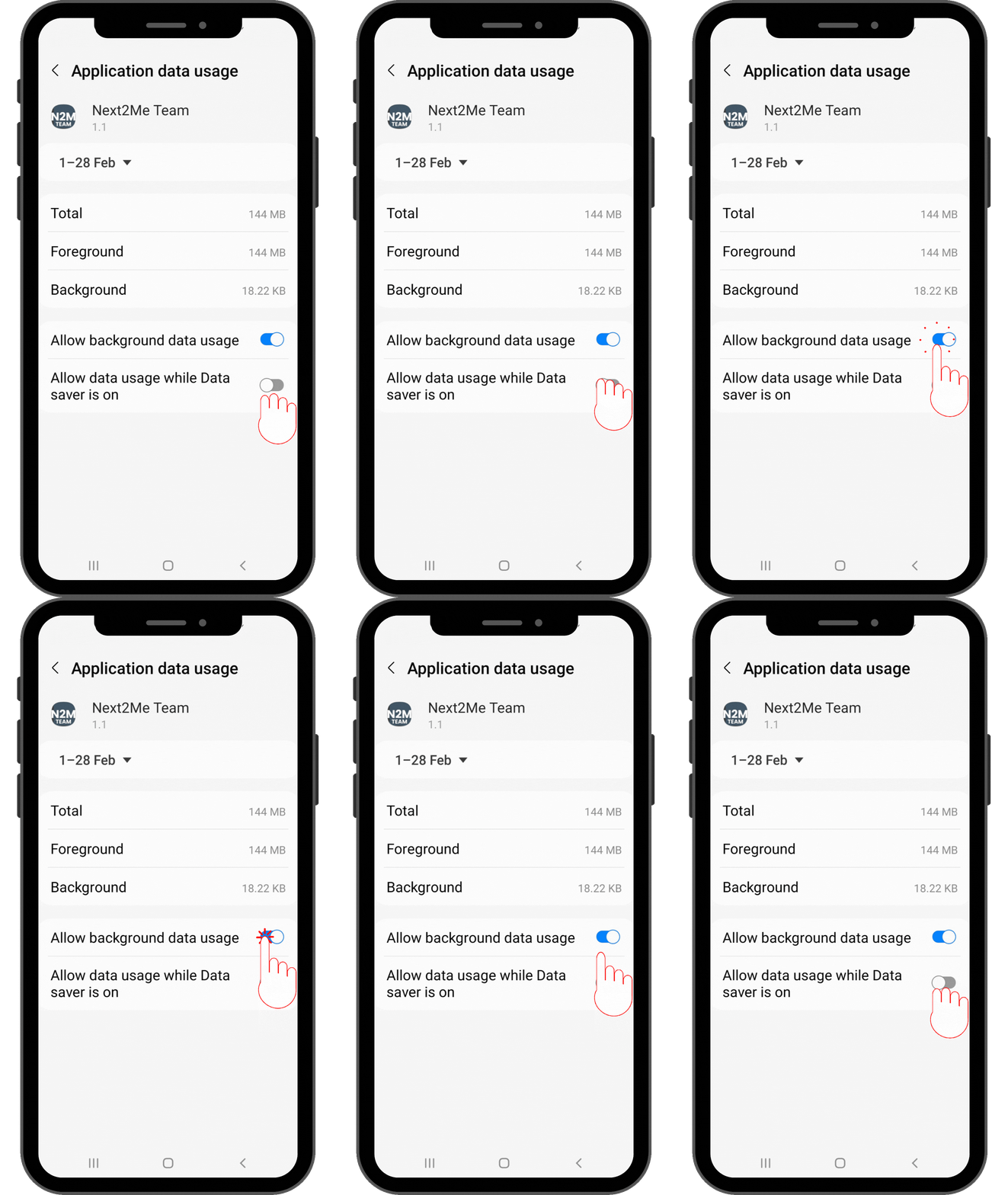
¶ Step 8 - Allow Background Data Usage
Turn Background Data ON to allow the app to receive service requests while running in the background.
¶ Step 9 - Open Battery Settings
Select Battery to manage how your device controls the app’s power usage.
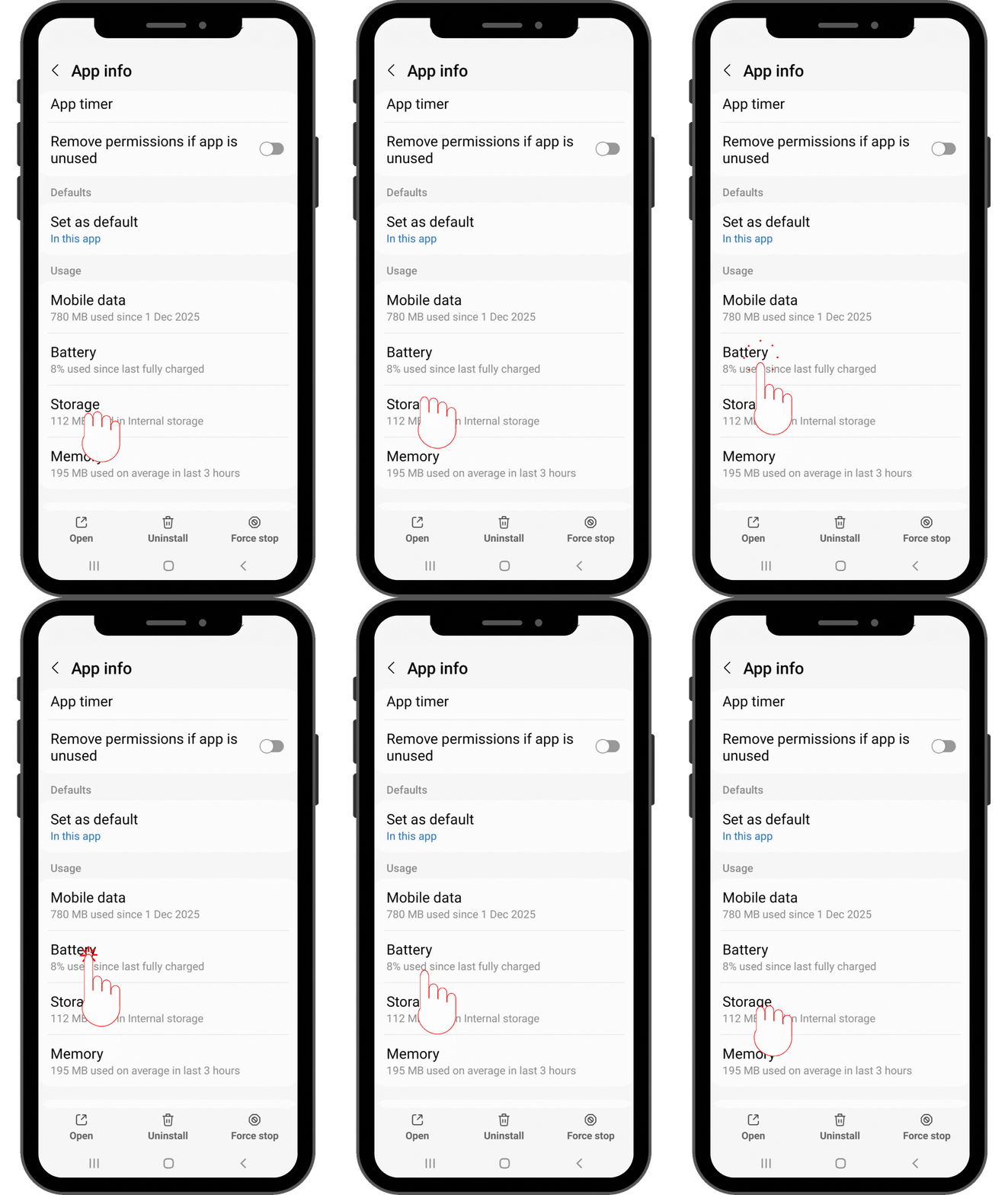
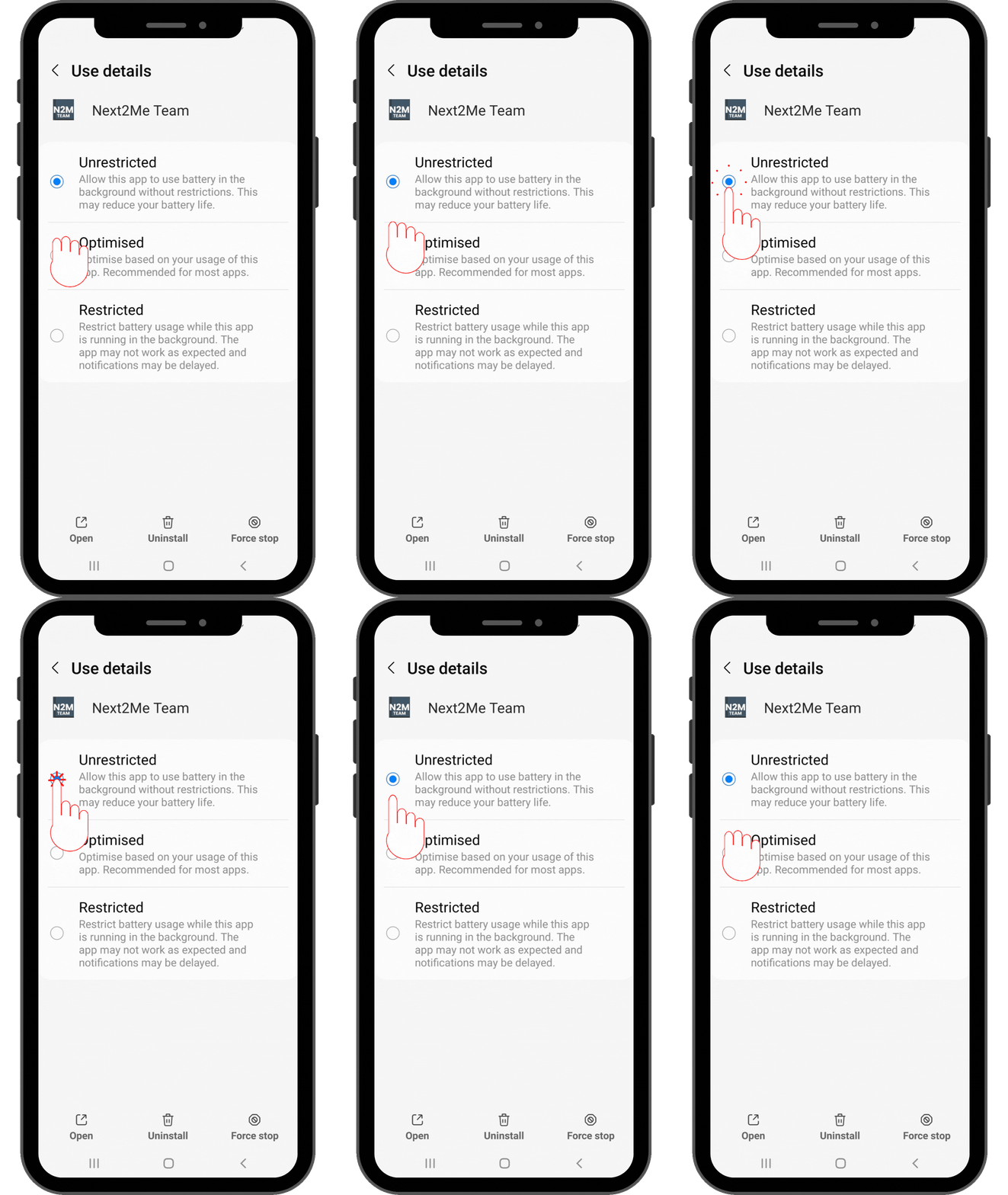
¶ Step 10 - Set Battery Usage to Unrestricted
Choose Unrestricted to prevent the system from limiting the app’s background activity.
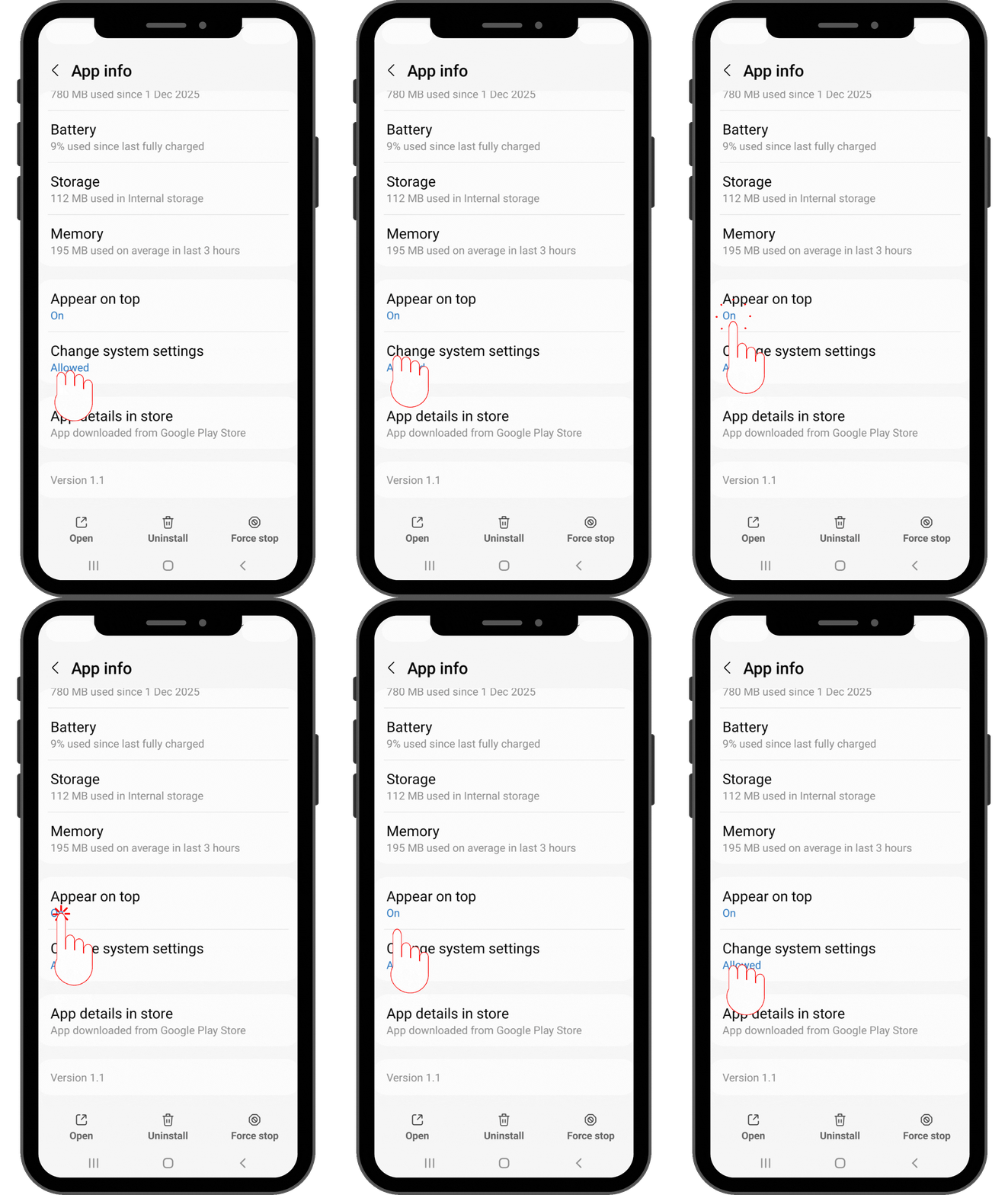
¶ Step 11 - Open “Appear on Top” Settings
Select Appear on Top (or Display over other apps) to configure notification display permissions.
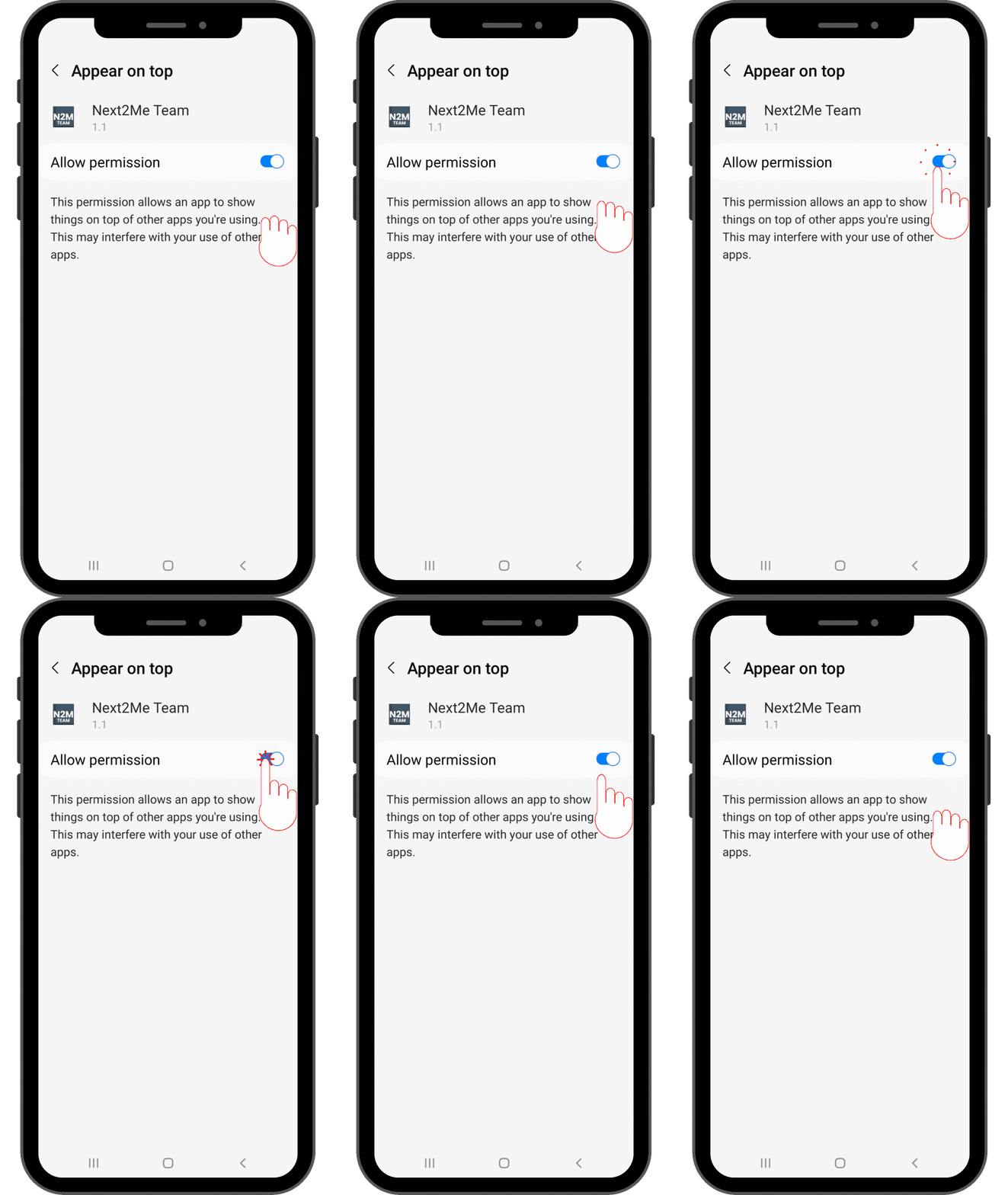
¶ Step 12 - Enable “Appear on Top”
Turn Allow display over other apps ON to ensure important alerts and service requests appear immediately.
¶ Android Quick Setup Checklist
✔ Enable Location Services in device settings.
✔ Open Settings > Apps and select NEXT2ME Team.
✔ Turn OFF Remove permissions if app is unused.
✔ Open Permissions > Location.
✔ Select Allow all the time.
✔ Open Mobile Data & Wi-Fi and ensure access is enabled.
✔ Turn ON Background Data.
✔ Open Battery settings.
✔ Select Unrestricted battery usage.
✔ Open Appear on Top (Display over other apps).
✔ Enable Allow display over other apps.
Your device is now fully configured to receive service requests without interruption.
¶ Need Assistance with Enabling Location?
- If you encounter any issues while configuring your location, data, or permission settings, please contact our support team for assistance.
- Our team can guide you through the required steps to ensure your device is properly configured to receive service requests.